
Master Bank Reconciliation in Xero: Complete Guide
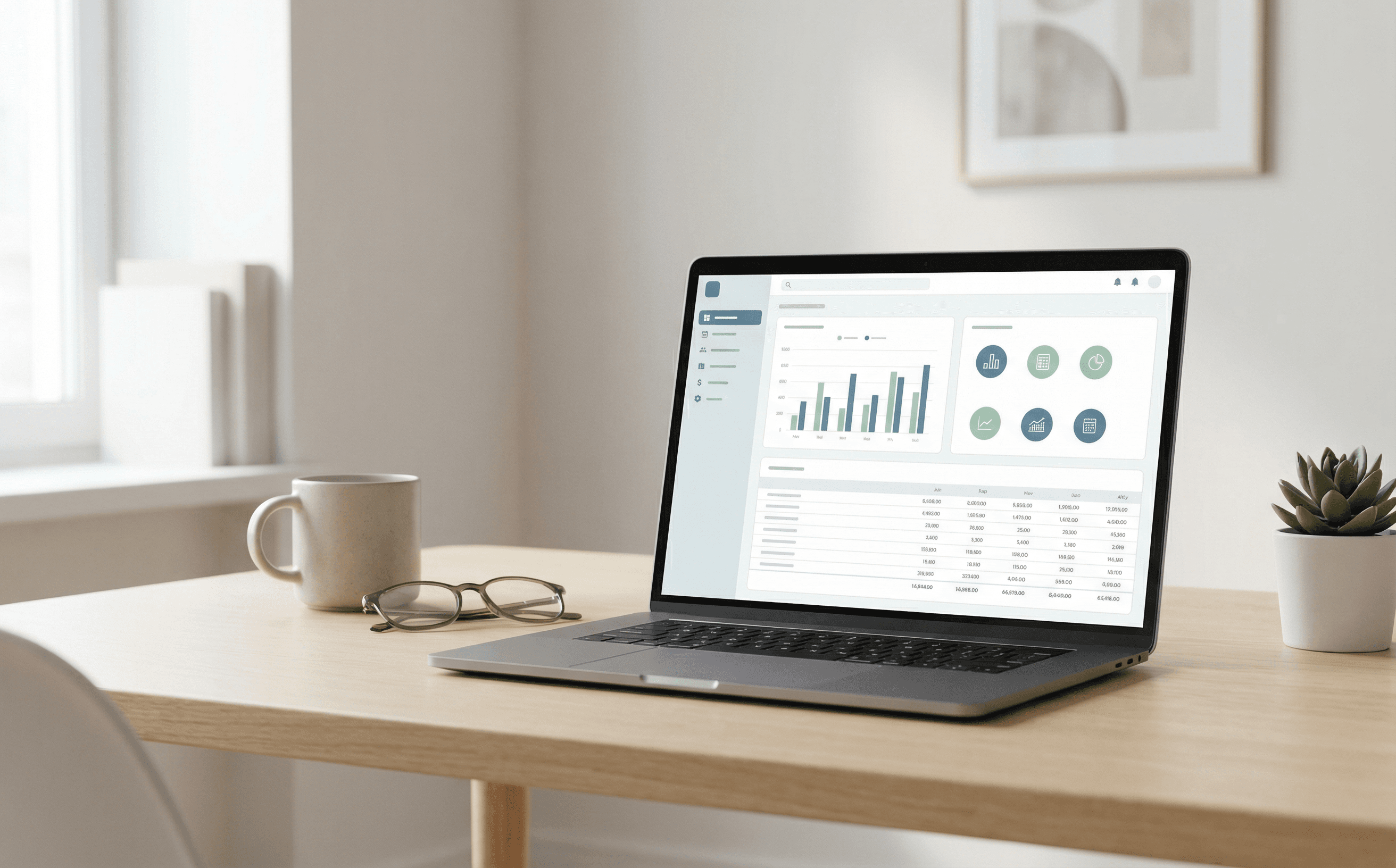
Efficient bookkeeping is a cornerstone of successful business management, and mastering the bank reconciliation Xero process can significantly streamline your financial operations. In this guide, we delve into the essentials of reconciling transactions using Xero, focusing on the integration of Xero bank feeds and the benefits of maintaining accurate financial records.
Understanding Bank Reconciliation in Xero
Bank reconciliation is the process of matching your business's financial records with the transactions recorded by your bank. In Xero, this task is simplified through the use of Xero bank feeds, which automatically import your bank transactions into the platform. This automation allows you to reconcile transactions quickly and efficiently, ensuring that your financial records are accurate and up-to-date.
Why is Bank Reconciliation Important?
- Accuracy: Ensures that your financial statements reflect the true financial position of your business.
- Error Detection: Identifies discrepancies between your records and bank statements, allowing you to correct errors promptly.
- Financial Insights: Provides a clearer picture of cash flow, enabling better financial decision-making.
Setting Up Xero Bank Feeds
Before you can start reconciling transactions, you need to set up Xero bank feeds. This feature allows Xero to automatically import transactions from your bank account, reducing the manual effort involved in data entry.
Steps to Set Up Bank Feeds
- Log into Xero: Access your Xero account and navigate to the 'Bank Accounts' section.
- Add Bank Account: Click on 'Add Bank Account' and select your bank from the list of supported institutions.
- Enter Details: Provide your bank account details and follow the prompts to link your account.
- Confirm Setup: Once the bank feed is established, transactions will begin to flow into Xero automatically.
How to Reconcile Transactions in Xero
With your bank feeds set up, you're ready to reconcile transactions. Here's a step-by-step guide to help you through the process.
Step 1: Access the Reconciliation Screen
- Navigate to the 'Dashboard' and click on the bank account you wish to reconcile.
- Select 'Reconcile' to access the reconciliation screen.
Step 2: Match Transactions
Xero will attempt to automatically match bank transactions with those entered into your accounts. Review these matches carefully.
- Auto-Match: If Xero has matched a transaction correctly, you simply need to confirm it.
- Manual Match: For unmatched transactions, use the search feature to find the corresponding transaction in Xero.
Step 3: Create New Transactions
For any transactions not yet recorded in Xero:
- Click 'Add Details' to enter the transaction manually.
- Ensure all details, such as date, description, and amount, are accurate before saving.
Step 4: Reconcile
Once all transactions are matched or entered, click 'Reconcile' to update your records. This step finalises the bank reconciliation process.
Troubleshooting Common Issues
Reconciliation can sometimes present challenges. Here are common issues and how to resolve them:
- Missing Transactions: Check for missing bank feeds or errors in manual entries.
- Duplicate Transactions: Ensure no duplicates exist in both your bank and Xero records.
- Discrepancies: Review previous reconciliations for errors that might have carried over.
For more complex issues, consider consulting a professional accountant or using Figures' Bookkeeping & Xero services for tailored support.
UK tax and legal accuracy
This article is for informational purposes only and does not constitute professional tax or financial advice. Please speak to a qualified accountant before taking action. This guidance applies to the tax year 2023/2024.
Frequently asked questions
What is a bank reconciliation in Xero?
A bank reconciliation in Xero is the process of ensuring that your business's financial records match the transactions recorded by your bank through the use of Xero bank feeds.
How often should I do a bank reconciliation?
It's recommended to reconcile your bank transactions at least monthly. Regular reconciliation helps maintain accurate financial records and provides timely insights into your cash flow.
Can I undo a reconciliation in Xero?
Yes, you can undo reconciliations in Xero if you identify errors. Navigate to the reconciliation report, select the transactions, and click 'Remove and Redo'.
Why are my bank feeds not working?
If your Xero bank feeds are not working, check your internet connection, ensure your bank supports Xero feeds, and verify that your bank account details are correct.
Is it possible to automate the reconciliation process?
While Xero automates the import of bank transactions, manual review is necessary to ensure accuracy. Full automation is not recommended due to the need for human oversight.
Summary and next steps
Mastering bank reconciliation in Xero is a crucial skill for managing your business finances effectively. By setting up Xero bank feeds and regularly reconciling transactions, you ensure that your financial records remain accurate and up-to-date. For further assistance, consider leveraging Figures' Statutory Accounts & Tax services or book a discovery call to explore tailored solutions for your business needs.